
The channel configuration method in this tutorial applies only when the Headtracker air-unit signal is routed into the gimbal through the gimbal base plate.
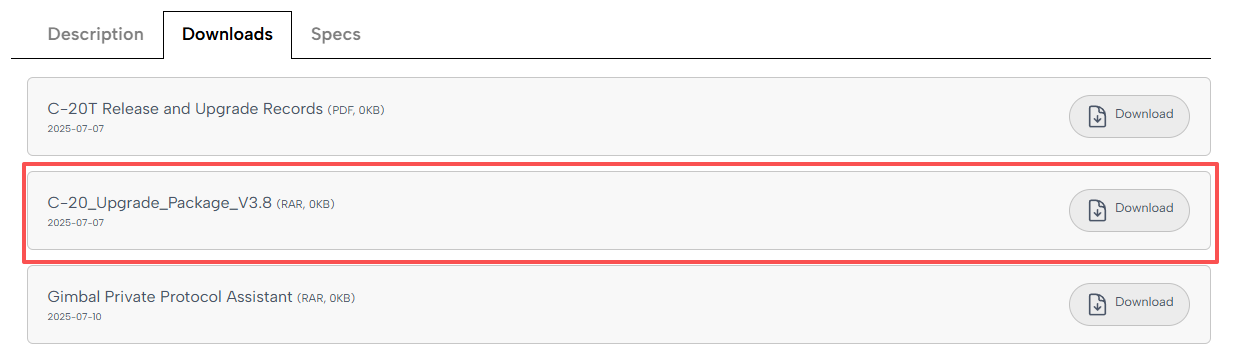
Step 1: Download the Gimbal Upgrade Package V3.8
● Log in to the AllXF official website, go to the “Software & Firmware” section, and download the upgrade package V3.8. URL:https://allxf.com/product/c-20t-3-axis-gimbal/
Step 2: Connect the config module
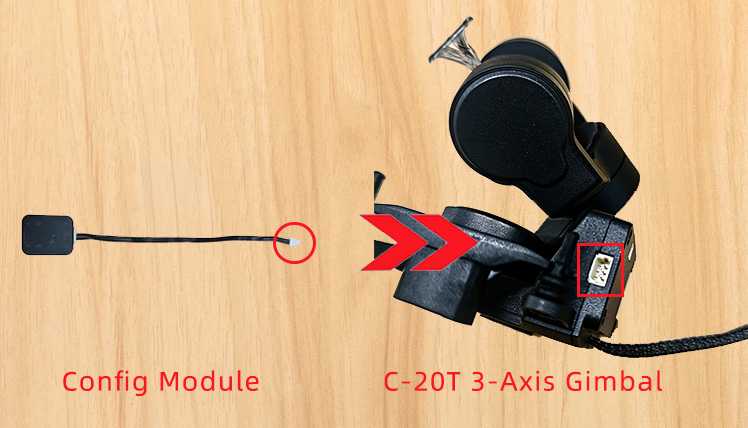
● Insert the 4-pin cable connector at one end of the config module into the side port of the gimbal. Pay attention to the connector orientation and insert it according to the keyed notch. Connect the USB end of the config module to the computer.
Step 3: Upgrade the Gimbal Firmware
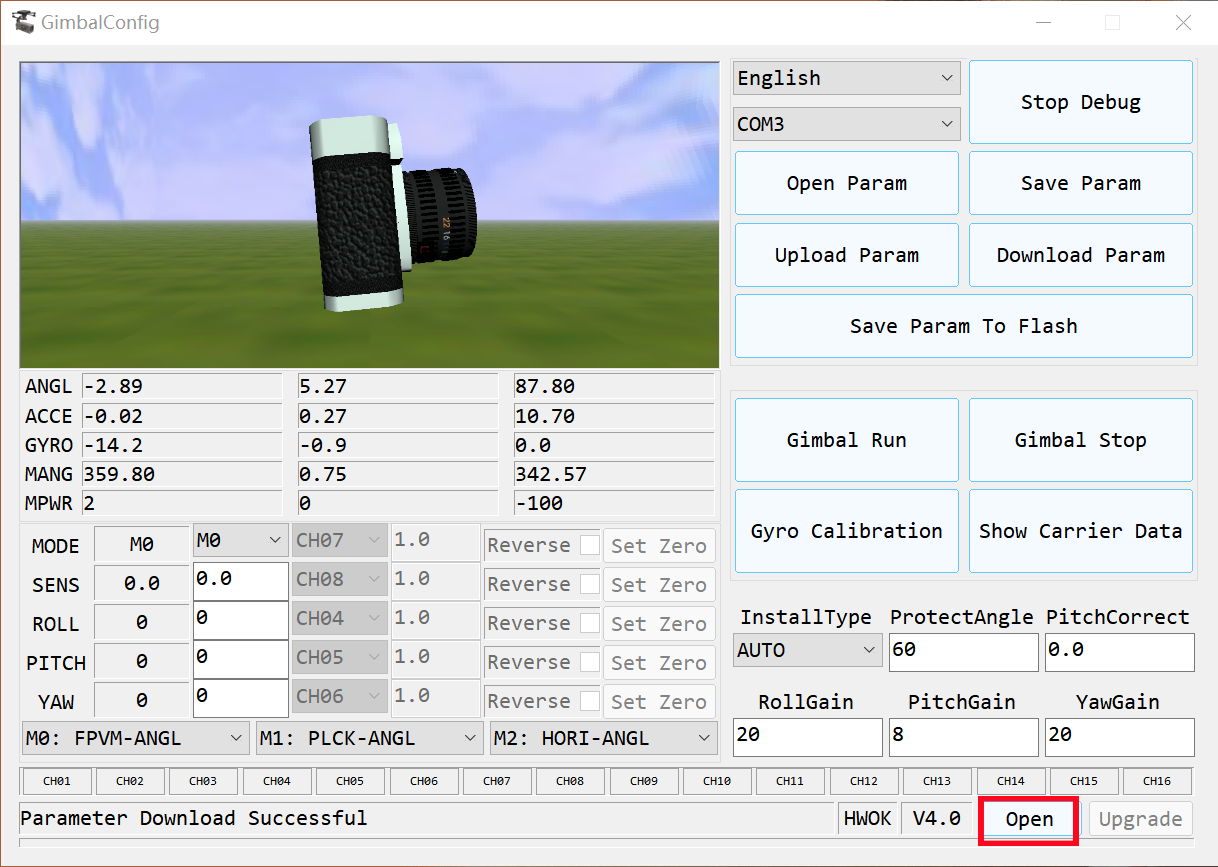
● Open the GimbalConfig tuning software and select the COM port corresponding to the config module from the drop-down list. The COM number varies by computer; first-time users need to confirm the correct COM port.
● Click “Start Debug”. If the button changes to “Stop Debug”, the software has established a connection with the gimbal.

● Click “Open” in the lower right corner and locate the 4.0 firmware file in the pop-up window.
● Click “Upgrade” to start flashing. After the upgrade is complete, power-cycle the gimbal and reconnect it to the computer.
Step 4: Upgrade the Headtracker Firmware
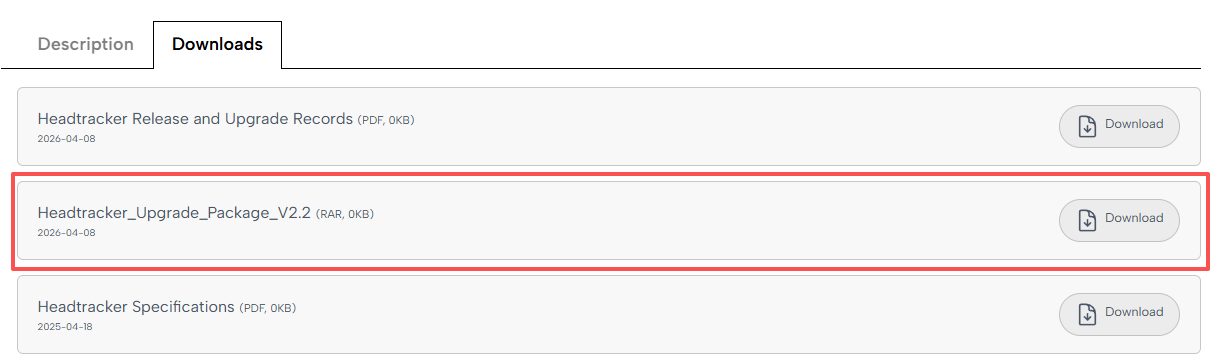
● Log in to the AllXF official website, go to the “Software & Firmware” section, and download the upgrade package V2.2. URL: https://allxf.com/product/headtracker/
● Use a Type-C data cable to connect the Headtracker module to the computer.
● Open the CwHeadTracker software, select the COM port corresponding to the Headtracker module in the upper right corner, and click “Start Debug”.
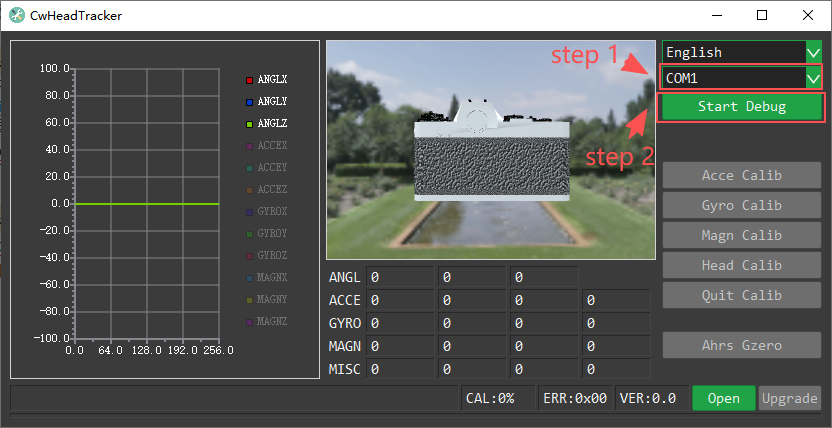
● Click “Open” in the lower right corner to select the firmware file, then click “Upgrade” to start flashing. After the upgrade is complete, power-cycle the Headtracker module.

Step 5: Confirm the Headtracker Channel
● Reopen GimbalConfig and connect the debug module.
● Check the channel bars and mode mapping area at the bottom of the interface. The channel occupied by the Headtracker will be automatically identified. In the new software version, it is Channel 3.
● If the software does not automatically identify it, manually set the channel to CH01.

Leave a Reply