
Issue 1: Head tracker upgrade gets stuck and the progress bar does not move
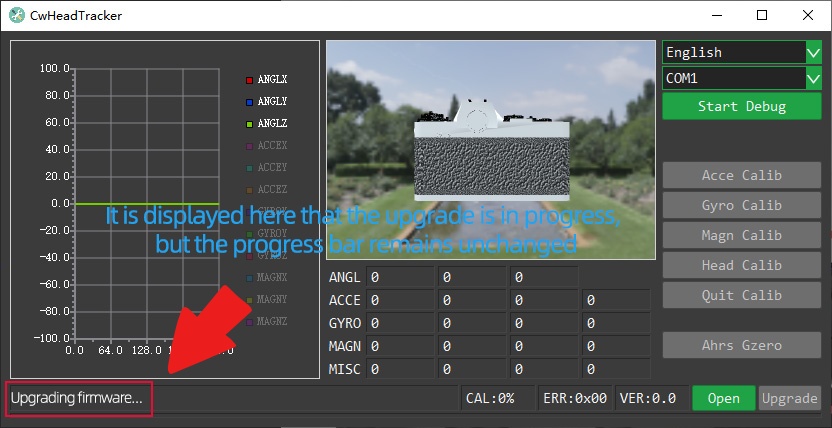
Symptoms: When upgrading the head tracker, the lower-left corner of the software interface keeps showing “Upgrading firmware…”, but the progress bar does not change for a long time. After closing and restarting the upgrade, it still gets stuck at the same point.
Solution:
Symptoms: When upgrading the head tracker, the lower-left corner of the software interface keeps showing “Upgrading firmware…”, but the progress bar does not change for a long time. After closing and restarting the upgrade, it still gets stuck at the same point.
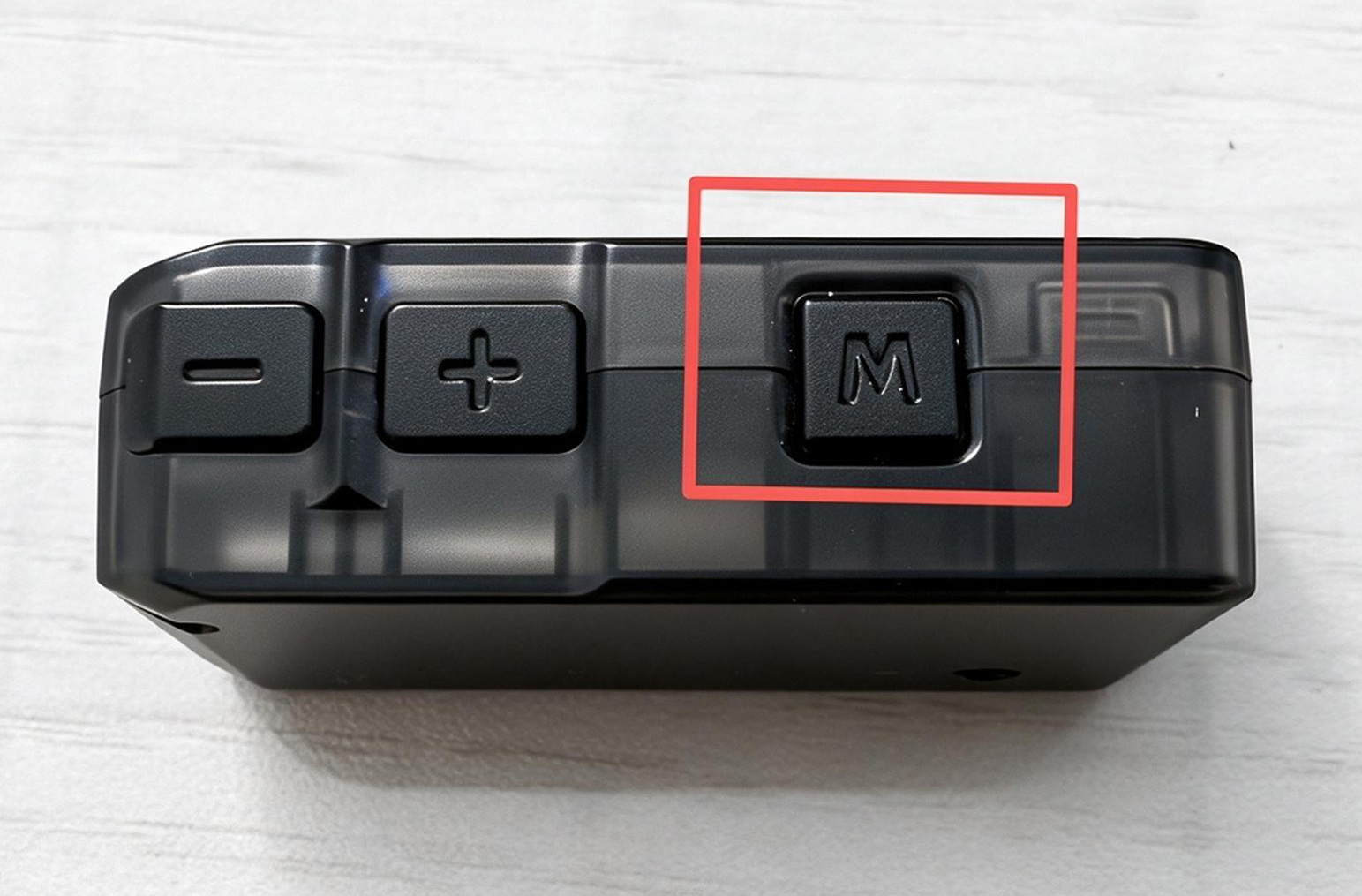
1. Long-press the M button on the head tracker and do not release it throughout the process.
2. While continuing to hold the M button, reselect the firmware file in the software.
3. Click Upgrade, and keep holding the M button during the upgrade.
4. Release the M button only after the upgrade is complete.
The M button must be held from the moment you select the firmware until the upgrade is finished. Releasing it midway will cause the upgrade to fail again.
Issue 2: The head tracker is connected to the gimbal, but the gimbal does not respond
Symptoms: The head tracker has successfully connected to the gimbal, but when you turn your head, the gimbal does not move at all and cannot be controlled.
Solution:
1. Visit the website: https://allxf.com/product/c-20t-3-axis-gimbal/#tab-ywtm-downloads-4192, download the upgrade file.
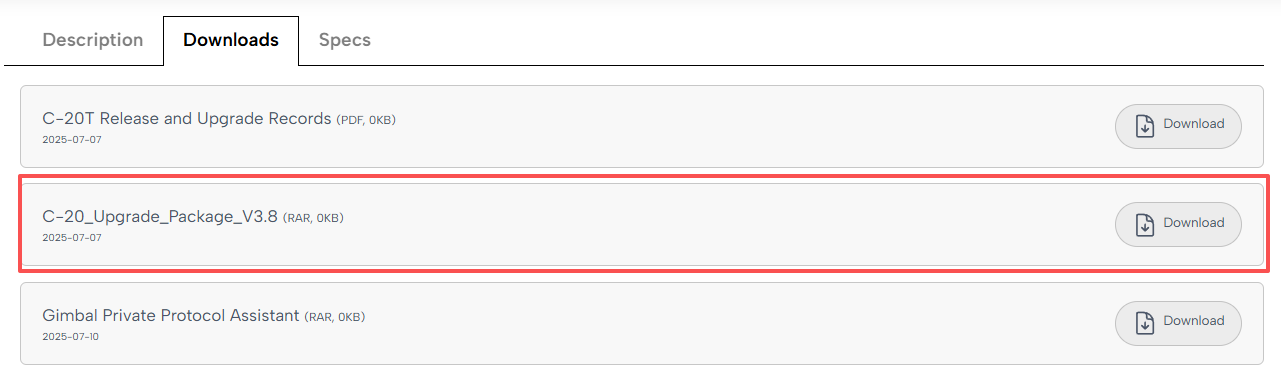
2. After extracting the file, open the PC software, select the corresponding serial port, and connect to the gimbal.
3. In the parameter area, find the following five items: MODE, SENS, ROLL, PITCH, and YAW. Change their channel selection from NULL to 1 for all five items.
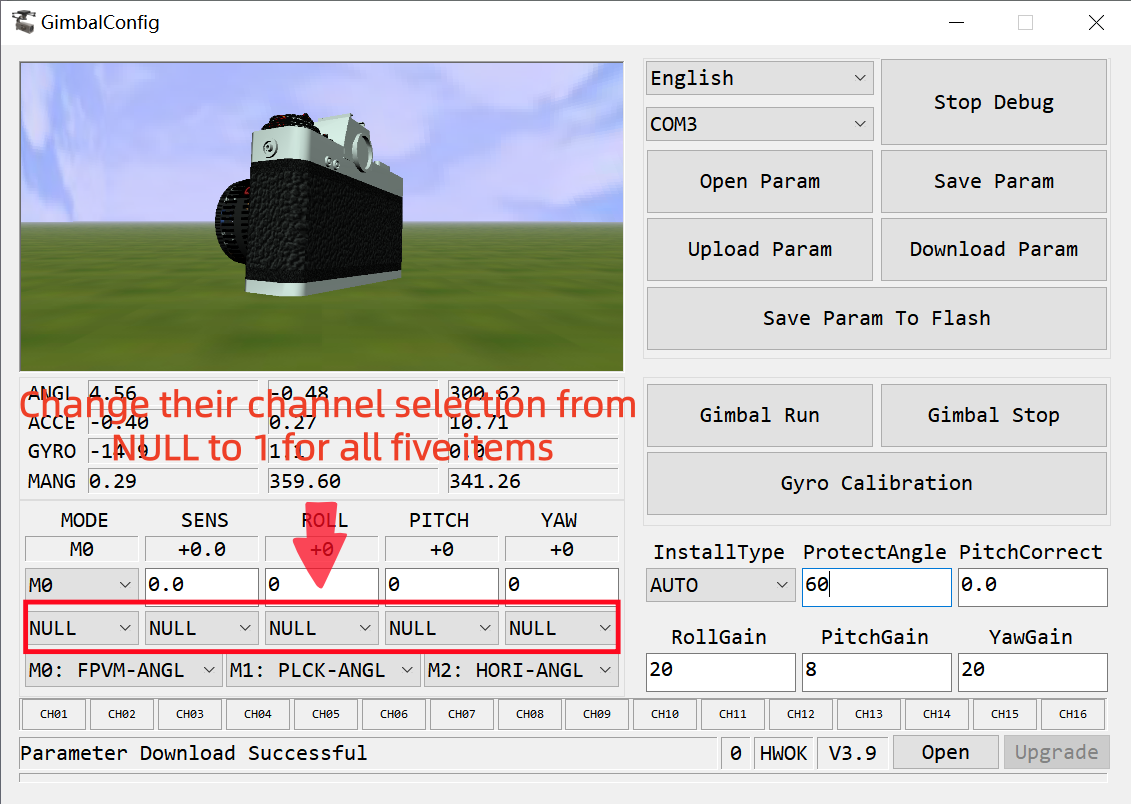
4. Click “Upload Parameters”, then click “Write Parameters”, and wait until the message “Parameters uploaded successfully” appears at the bottom of the interface.
5. After completion, the head tracker can control the gimbal normally.
Issue 3: The gimbal still cannot be controlled after modifying the channels
Symptoms: The channels have been changed to 1 and written according to the solution for Issue 2, but the gimbal still does not respond.
Solution:
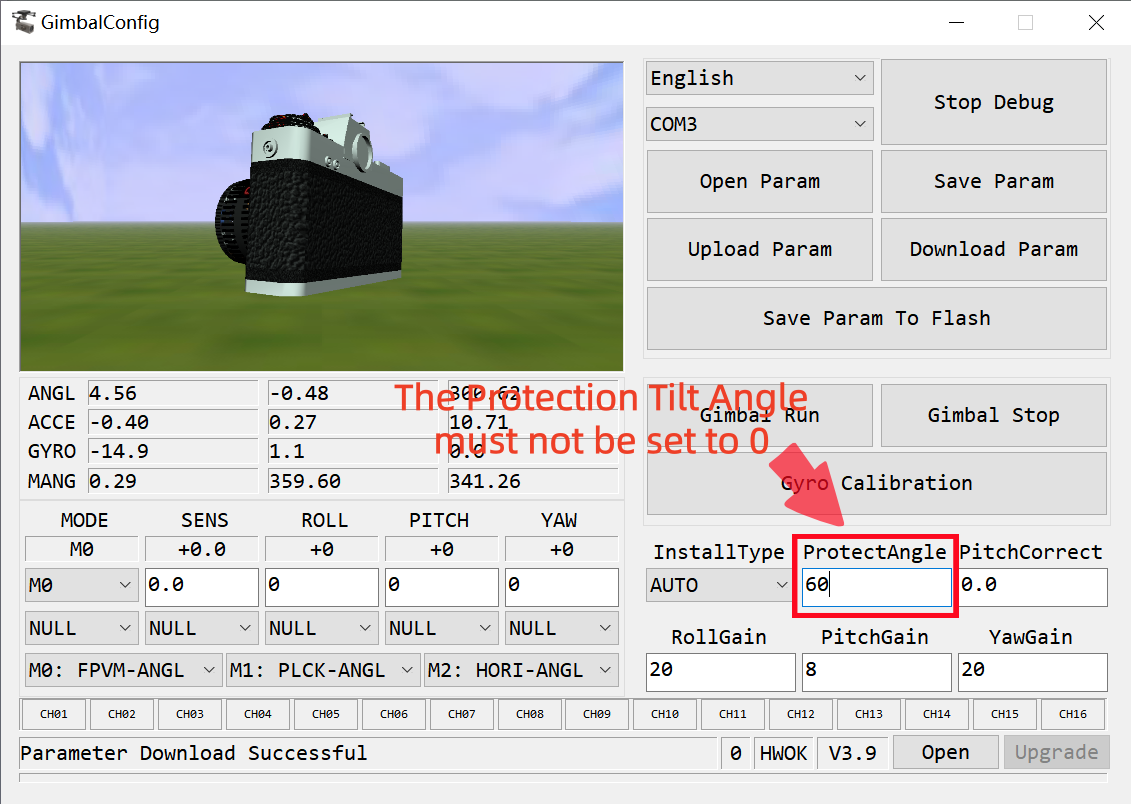
1. Open the gimbal PC software and check the “Protection Tilt Angle” parameter in the lower-right corner of the interface.
2. The Protection Tilt Angle must not be set to 0; otherwise, the pitch direction will be limited and will not respond normally.
3. After adjusting it, perform “Upload Parameters + Write Parameters” again.
Issue 4: Reverse control of the gimbal
Symptoms: When using the head tracker to control the gimbal, the direction is opposite to the normal direction (for example, the gimbal needs to move downward when you raise your head).
Solution:
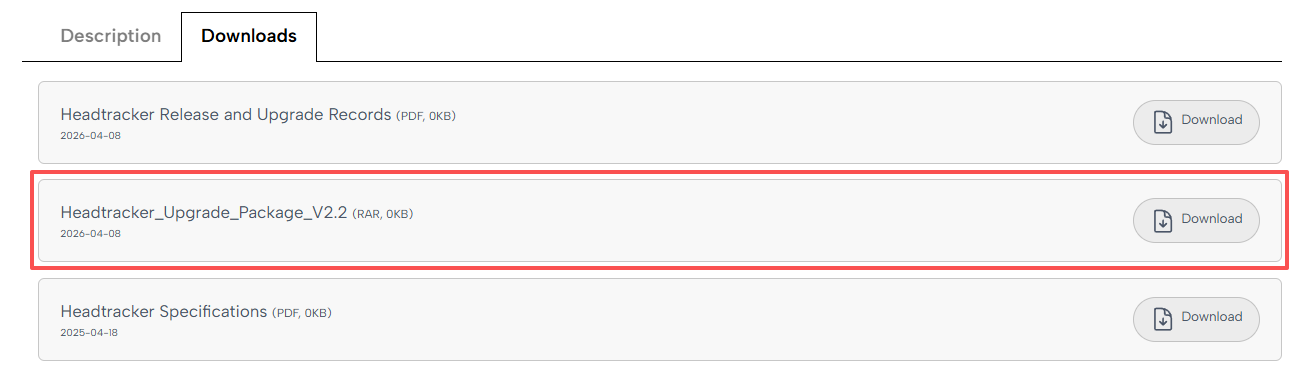
1. Visit the website:https://allxf.com/product/headtracker/#tab-ywtm-downloads-4192 , download the upgrade file.
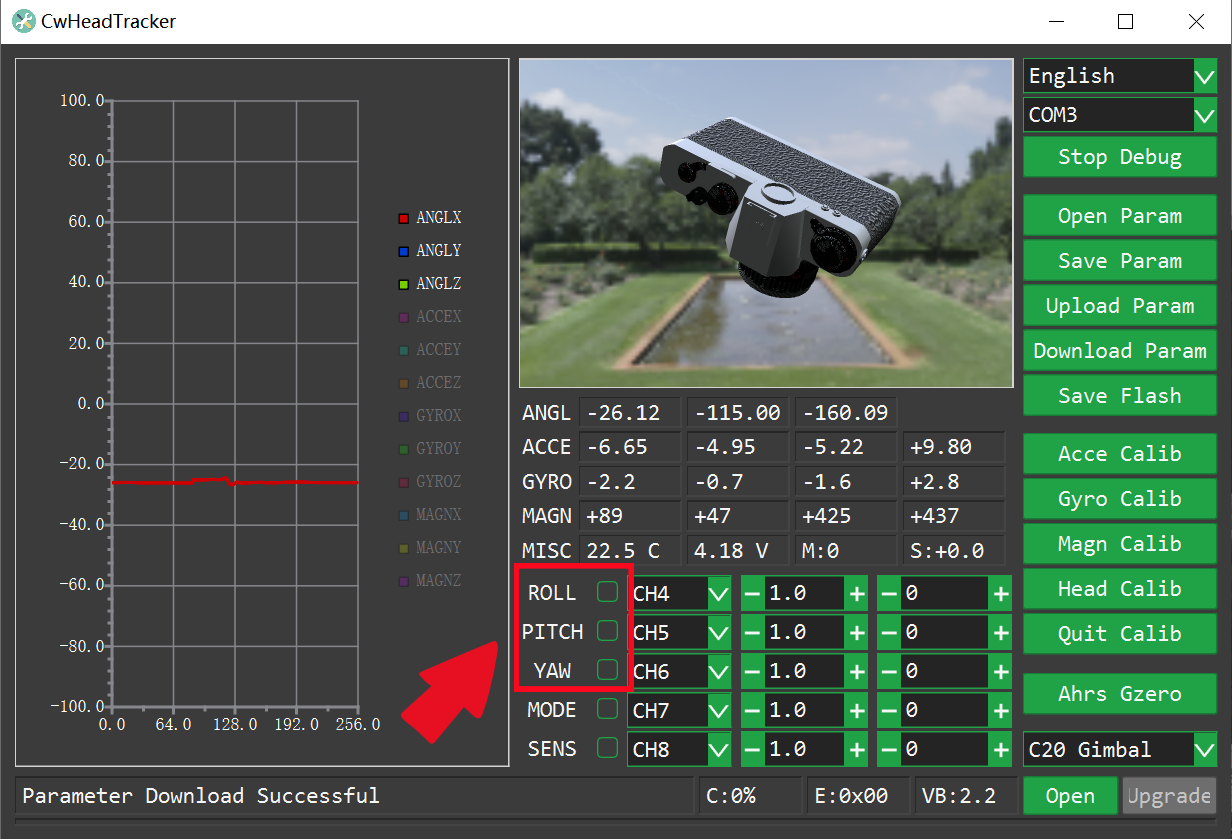
2. Open the head tracker PC software. Each row in the interface corresponds to one control item (Roll / Pitch / Pointing / Mode / Sensitivity).
3. Select the checkbox in front of the item that needs to be reversed. This completes the reversal.
4. Click “Upload Parameters” and “Write Parameters” to apply the settings.
Leave a Reply